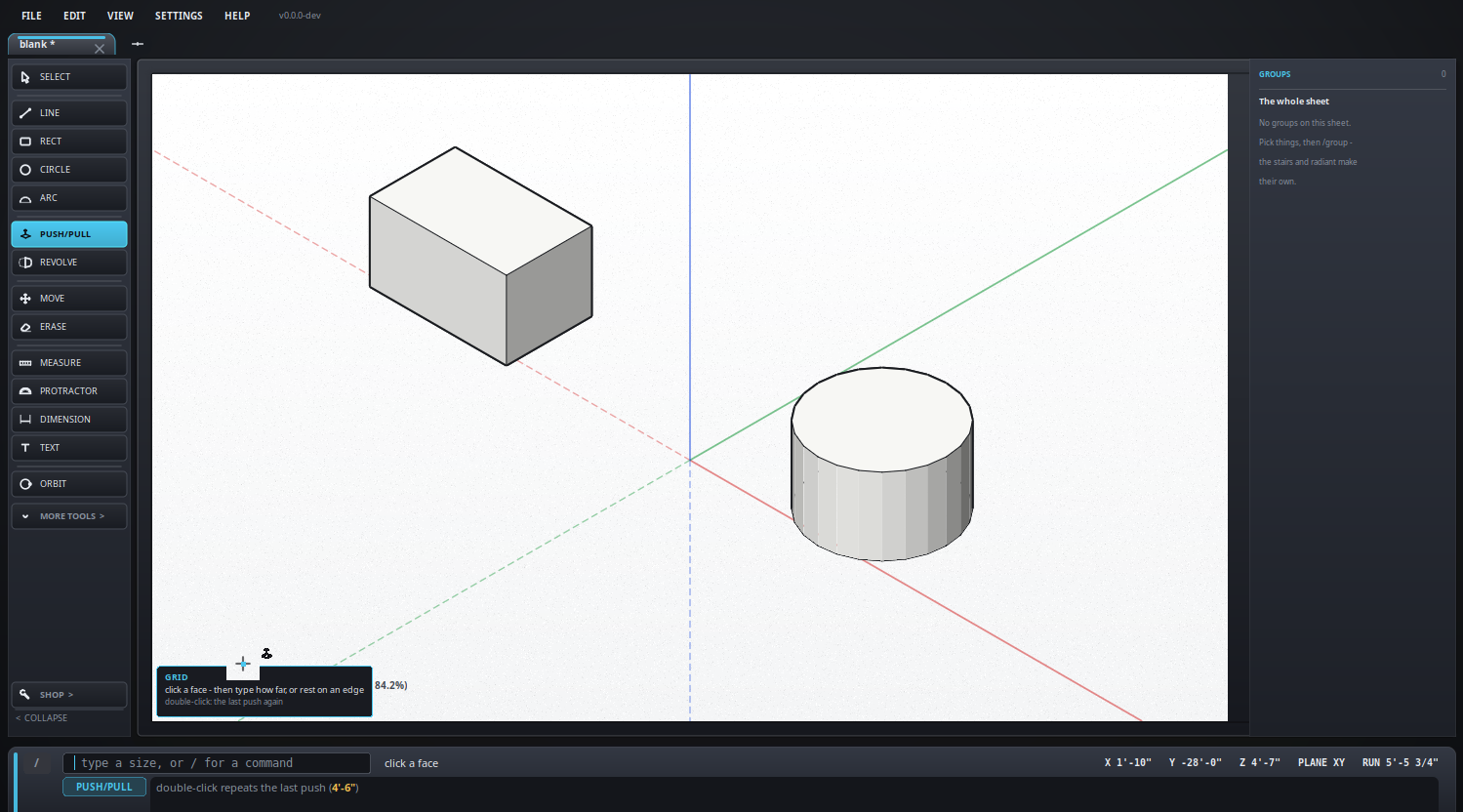
Tool keys are SketchUp's wherever SketchUp has one, because that is the
muscle memory worth keeping. Where it does not, the letter is the first
letter of the tool. None of them need a modifier: just press the letter.
You do not have to memorize any of this. Whatever tool is in hand, the
line along the bottom of the window names its keys and what the next click
will do - glance down and it tells you.
| Key | What it does | |
|---|
| I | Isometric, and back to plan | |
| V | The next standard view | top, front, right and the rest, all the way around |
| Shift+V | The previous one | |
| Ctrl+arrows | A step around the view cube | in 3D, between shapes: left and right go round, up and down tip over |
| Shift+F | Zoom until it all shows | same as /fit |
| K | The working plane: XY, XZ, YZ | same as /plane |
| G | The ruled paper, on and off |
off unless you ask for it. Flat paper is ruled like paper; in ISO and 3D it is a floor, lying in the red and green plane where both axes are solid |
| U | Feet and inches, or millimeters | |
| H | The next theme | |
| Key | What it does | |
|---|
| ← → ↑ ↓ |
Before a shape is started, pick the plane to draw on; after it, lock the direction |
green, red, blue - the same three the rubber band turns |
| Alt | Before a line is started: hold the working plane, and step it round |
so you can draw in mid air. Esc goes back to following the face under the pointer |
| Alt | Part way along a line: step through what the cursor may infer |
all of them, then the directions off, then parallel and square to the last edge only - SketchUp's cycle. Corners and midpoints keep snapping throughout |
| Alt | Pulling an arc's bulge: run it out of the edge it started on, smoothly |
start the arc on an edge first. Alt again lets the cursor pull it |
| Alt | With the offset tool: keep the overlaps |
a corner taken in further than it is round comes back as it falls, loops and all, instead of being squared off |
| Alt | With rotate or the protractor: free it from the face under the cursor |
it then turns flat unless an arrow picks a plane |
| Shift | Keep the axis the move has drifted onto | during a move or a drag |
| Ctrl | Leave a copy behind | during a move. With the eraser it softens an edge instead of deleting it, and Ctrl+Shift brings it back |
| + - | How many sides a circle or an arc is drawn with |
or type 24s. With one note picked they are its text size |
| [ ] | Pen thinner, pen thicker | |
| Enter | Take what has been typed | a length, [x,y,z], <x,y,z> - see typing measurements |
| Esc | Back out, one step at a time |
what is typed, then the shape under way, then the selection, then back to Select |
| Delete | Delete what is picked |
with nothing picked it asks before clearing the sheet |
| Key | What it does | |
|---|
| Ctrl+Z | Undo | |
| Ctrl+Y | Redo | |
| Ctrl+C | Copy what is picked | |
| Ctrl+X | Cut it | |
| Ctrl+V | Paste - it arrives on the cursor, click to put it down | any sheet, not only the one it came from |
| Ctrl+S | Save | Ctrl+Shift+S saves under a new name |
| Ctrl+O | Open | |
| Ctrl+E | Export | see exporting |
| Ctrl+P | Print | see printing |
| Ctrl+N | A new drawing, empty | Ctrl+T, /new |
| Ctrl+W | Close this file - every sheet of it | asks first if it has changes |
| Ctrl+M | The menu - new, open, recent, save, export, print, close | the FILE menu |
| Ctrl+Tab | The next sheet | |
| F1 | About this program | |
| / | The command list | see commands |