Units, scale and precision
Four settings that sound alike and do different jobs.
Units, scale, precision and snap. They sound alike and only one of them moves anything. Getting them straight is five minutes that saves an afternoon.
Units - what you type and read
/units, or U, swaps the whole drawing between
feet-and-inches and millimeters. Every length on screen, every dimension and
every readout changes with it. The geometry does not move - a drawing is
stored in feet either way, and this is only how it is written down.
Scale - what comes out of the printer
PRINT SCALE, on the SETTINGS menu, or /scale 1/4". A
quarter inch to the foot means a quarter inch on the paper, measured with a
real ruler.
The scale is not the zoom. Zoom in as far as you like and the print does not change. The view percentage in the corner is how big it is on your screen; the scale is how big it will be on paper.
Precision - how finely a length is written
ROUNDED TO, on the SETTINGS menu. 1/16" unless you change it. It sets:
- how every length and dimension is written down;
- what the last field of truss notation counts in
-
6-8-15is fifteen sixteenths at 1/16", and at 1/32 the same idea is written6-8-31.
It does not move anything. A wall built to an awkward figure stays at that figure; it is only written more coarsely.
Snap - where a rough click lands
SNAP TO, on the SETTINGS menu. This one does move things: a click with nothing near it lands on the nearest multiple of the snap step. Set it to what you are working to.
It never overrides a corner or a midpoint - see snapping.
The only one that moves anything
Worth saying on its own, because it is the whole point of the page: snap is the only setting here that changes the drawing. Units change how a length is written. Scale changes how big it prints. Precision changes how finely a number is written down. None of the three touch the geometry - you can change all of them on a finished drawing and not one point moves.
So if a wall is in the wrong place, none of these is the thing to reach for. And if a wall reads as 8'-0" when you know it is 8'-0 1/32", that is precision doing its job and the wall is fine.
Which to change when
| You want | Change |
|---|---|
| Millimeters instead of inches | Units |
| The print to come out at a quarter inch to the foot | Scale |
| Dimensions to read to 1/32 | Precision |
| Rough clicks to land on whole inches | Snap |
| The model bigger on screen | None of them - zoom |
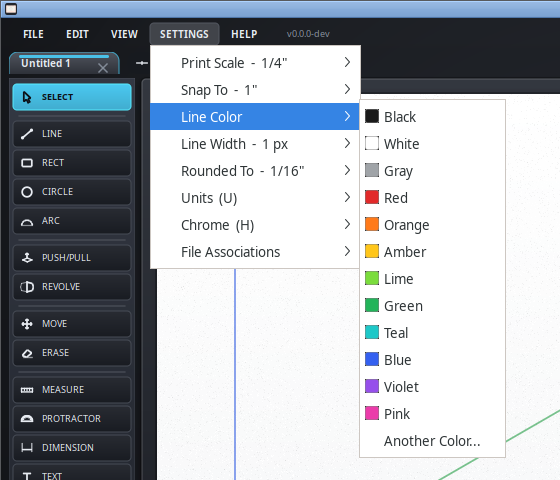
The SETTINGS menu
All four live on the SETTINGS menu along the top, and so do the line color, the line width and the light or dark chrome. Each row names its current value right on the menu - Snap To - 1" - so a glance tells you how the drawing is set without opening anything.