Arc
An arc between two points - and the way to round a corner.
Keyboard: A
How to use it
- Click where the arc starts.
- Click where it ends.
- Move the pointer to pull the middle of the arc out, and click. Or type how far the middle bulges out - 6" - and press Enter.
It is also the tool for joining two loose ends with a curve.
Rounding a corner
This works like SketchUp's 2 Point Arc.
- Click a point on one edge, near the corner.
- Click a point on the other edge.
- Pull the middle in towards the corner. When the arc curves smoothly into both edges it turns magenta and says TANGENT TO EDGE. That is a true rounded corner.
- Now finish it one of two ways:
- Click - the arc goes in and the square corner stays. Erase the two leftover corner lines yourself, or keep them if you wanted an arc inside the corner.
- Double-click - the arc goes in and the square corner is trimmed away in one go.
When it turns magenta the arc starts exactly where you first clicked, and its other end moves to the same distance from the corner on the other edge. That's the only place an arc can curve smoothly into both edges, so if the second end jumps a little when it locks, that's why.
Setting the size
- While it is magenta, type a radius and press Enter - 2". Both ends move to suit.
- Or type the radius with an r on the end - 2"r - and it is taken as a radius even when the arc is not magenta yet.
- Without the magenta and without an r, a number is the bulge, as it always was.
Pressing Enter leaves the square corner in place, the same as a click.
The same again on the other corners
Once one corner is rounded, double-click near any other corner and it is rounded to the same radius and trimmed. Four double-clicks and a rectangle has four round corners.
Double-clicking a corner you rounded earlier with a plain click just trims it - it doesn't put a second arc on top.
What counts as a corner
- Two loose lines meeting at an angle - square or not, flat, up a wall or on a slope.
- Not three lines meeting at one point: there's no single way to round that.
- Not the edges of a solid built by push/pull or a wizard.
- A radius too big for the shorter of the two edges is refused.
How smooth it is
An arc is drawn as a run of straight segments - twelve to begin with.
- With the arc tool live, + and - step the number of segments up and down by one, and the hint line at the bottom shows where you are.
- Or type the number with an s on it - 12s, or s12 - and press Enter. Anything from 3 to 360.
- It is remembered for the next arc.
- Or change it afterwards, from the entity panel.
What it looks like

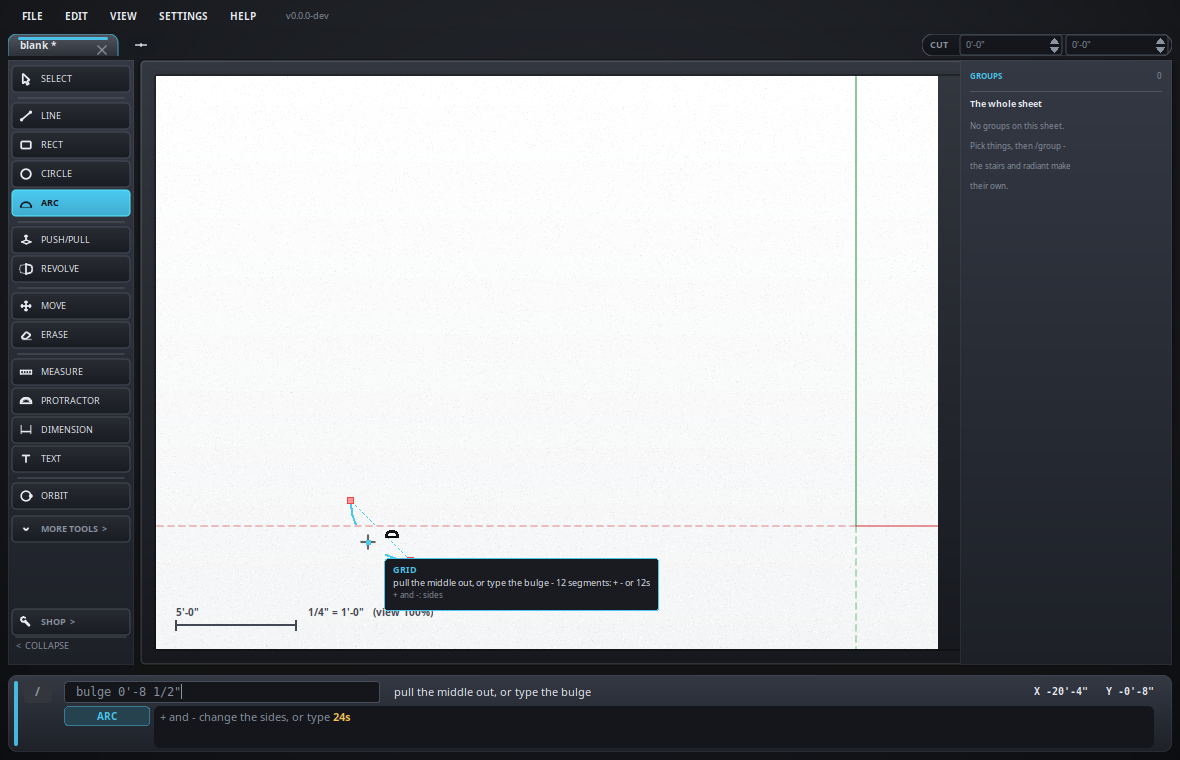
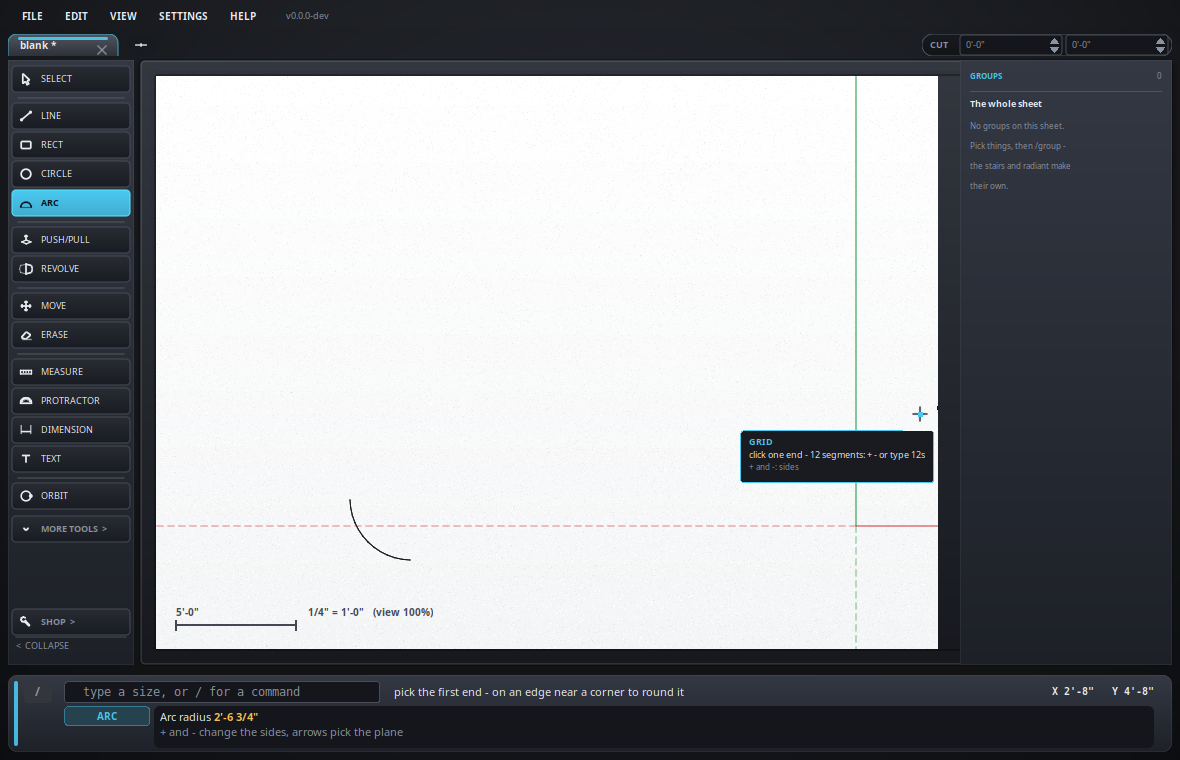
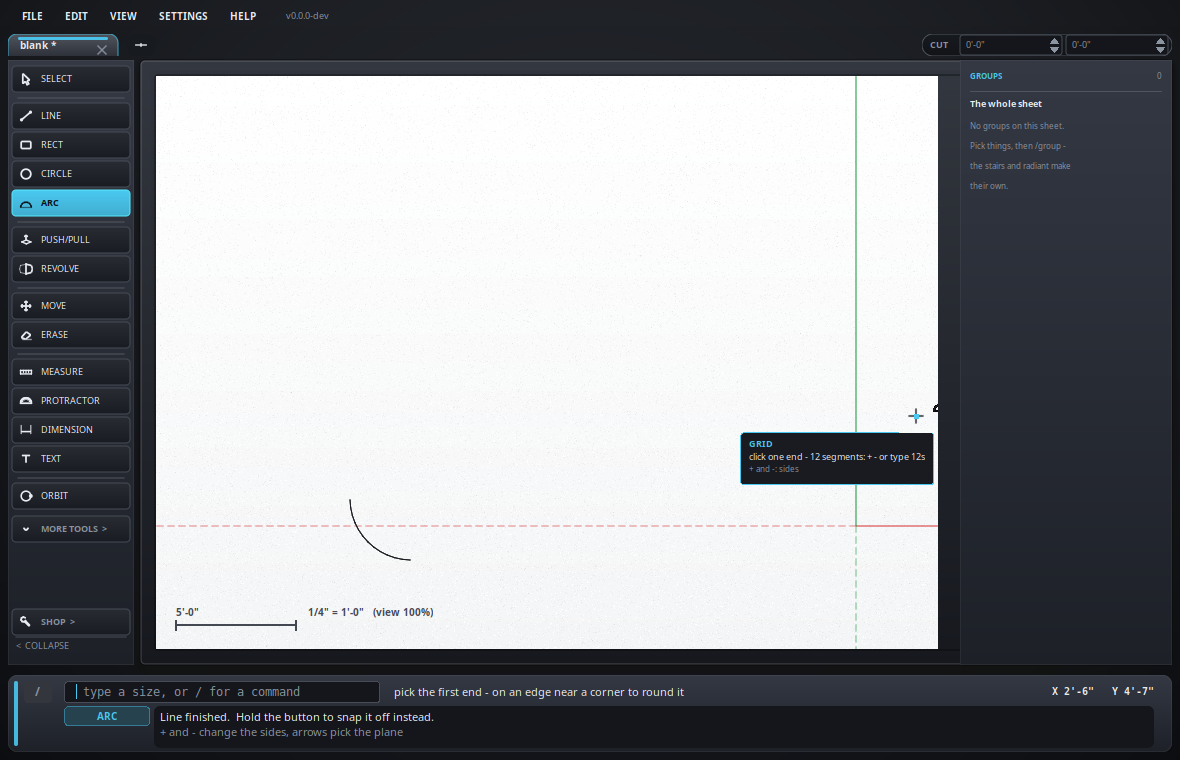
Running it out of an edge
Start an arc on an edge and press Alt while pulling the bulge: the arc is held tangent to that edge, so it leaves it smoothly with no kink. The cursor no longer sets the bulge - the two ends and the edge decide it between them - and Alt again hands it back. A typed bulge still wins. This is SketchUp's tangent lock, without having to hover the edge first: the edge your first click landed on is the one it uses.